How to get the transcript of a YouTube video (3 easy ways)
A transcript is the spoken words of a video written out as text. It is much faster to skim than a video, you can search it, quote it, print it, and paste it into notes. Most YouTube videos already have one, because YouTube creates captions automatically for many languages, and many creators upload their own.
This guide shows three ways to get that text. Pick the one that matches what you need: one quick copy, a caption file for a video you own, or a clean document made from many videos.
Way 1: Use YouTube's built-in "Show transcript" panel
This is the quickest option when you need the text of a single video right now.
- Open the video on youtube.com in a desktop browser.
- Below the video, click the description to expand it (the "…more" link).
- Scroll to the end of the description and click Show transcript. A transcript panel opens next to the video.
- To remove the time codes, open the panel's menu (the three dots at the top of the panel) and choose Toggle timestamps.
- If the video has several caption languages, choose one from the language menu at the bottom of the panel.
- Select the text with your mouse, copy it, and paste it wherever you like.
YouTube changes its layout from time to time, so the button may move slightly, but it is usually in the description area. In the mobile app, the same "Show transcript" button appears when you open the description.
Limits of this method: you copy one video at a time, the copied text has a line break every few words, and long transcripts are tedious to select. It works well for one short video, but not for a course or a channel.
Way 2: Download captions of your own video in YouTube Studio
If you are the creator, you can download the caption file of your own uploads.
- Open YouTube Studio and choose Subtitles in the left menu.
- Click the video, then the language you want.
- Open the menu (three dots) next to the captions and choose Download. You can pick a format such as .srt or .vtt.
Caption files like .srt are built for video players: they contain numbered blocks and time ranges. They are useful for re-uploading or editing captions, but you will need to clean them up before reading them as an article. This method only works for videos on your own channel.
Way 3: Collect many transcripts into one clean document
When you want the transcripts of a playlist, a course, or a whole channel, copying videos one by one quickly becomes hours of work. TranscriptBinder was made for that case. You paste links, and it builds a single booklet with a table of contents.
- Add the TranscriptBinder extension to Chrome or Edge (one time, one click). It works without a separate program.
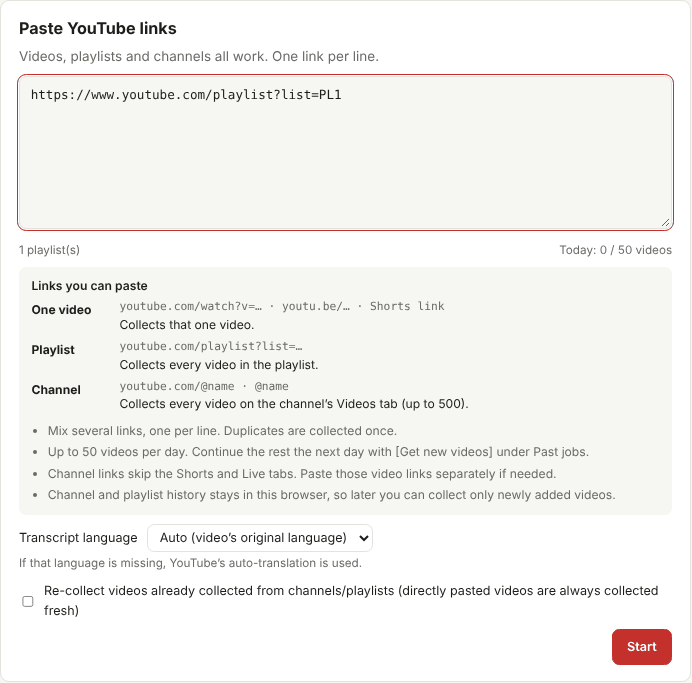
- Open the dashboard and paste links, one per line: single videos, playlists or channels.
- Press Start. A small window opens and reads each video's public captions. Each video usually takes 10–30 seconds.
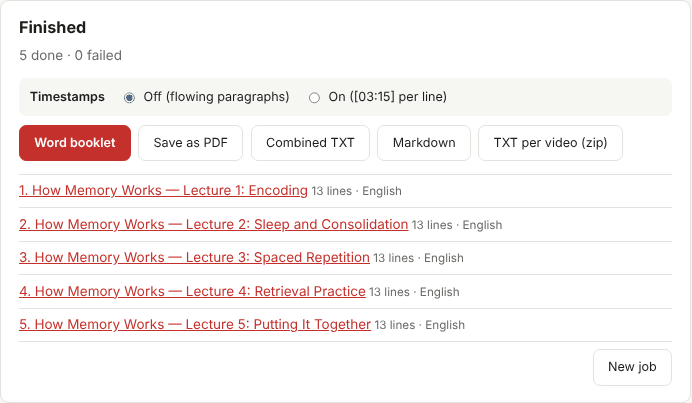
- Download the result as a Word booklet, PDF, combined TXT, Markdown, or one TXT file per video.
By default, timestamps are removed and the lines are joined into readable paragraphs. Every video starts on its own page with its title, channel, publish date and link, so you always know where each passage came from.
Which way should you use?
| You want… | Best way |
|---|---|
| A quick quote from one video | Way 1: Show transcript |
| A caption file (.srt) of your own video | Way 2: YouTube Studio |
| Readable text from 5, 50 or 500 videos | Way 3: a transcript booklet |
Things to keep in mind
- Not every video has a transcript. Very new uploads, music-only videos and some languages may have none. See why some videos have no transcript.
- Automatic captions contain mistakes, especially with names, technical words and noisy audio. Check important quotes against the video.
- Transcripts belong to the creators. Use them for personal study and research, and do not republish or sell someone else's words.