Get every transcript from a YouTube playlist at once
Playlists are how most courses, lecture series and podcast seasons are organized on YouTube. Reading them as text is a great way to review, but YouTube's own transcript panel only shows one video at a time. This guide shows how to turn a whole playlist into a single document, in playlist order, from one link.
What you need
- Chrome or Microsoft Edge on a computer
- The TranscriptBinder extension (added once from the browser's extension store)
- The playlist link
1. Copy the playlist link
Open the playlist page on YouTube. Its address looks like https://www.youtube.com/playlist?list=PL…. You can also copy the address of a video that is playing inside the playlist (it contains &list=); for a whole playlist, the playlist page address is the clearest choice.
The playlist must be public or unlisted. Private playlists can only be opened by their owner.
2. Paste it into the dashboard
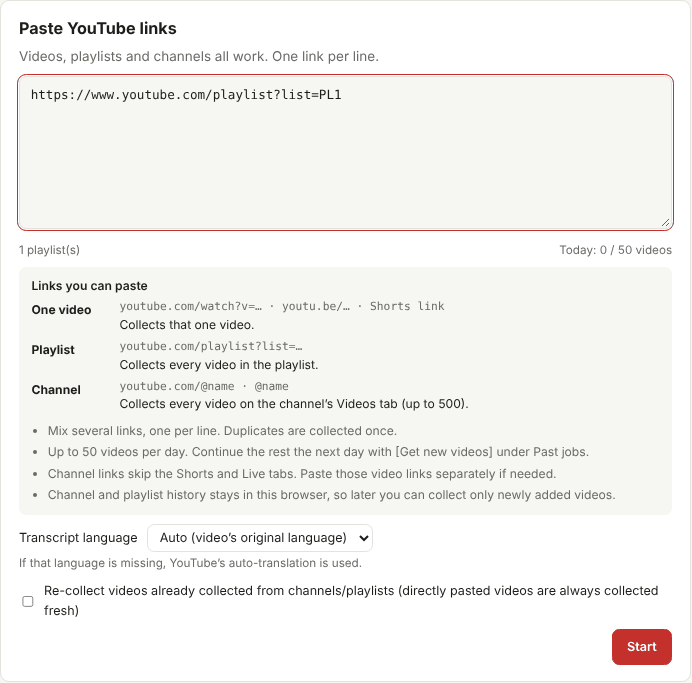
Open the dashboard and paste the link into the box. Below the box, the dashboard tells you what it recognized, for example "1 playlist(s)". You can paste several playlists, channels and single videos together, one per line. If a video appears more than once, it is collected only once.
3. Choose the language
The default, Auto, uses each video's original language. If you study a course in another language, pick English, Korean, Japanese or Chinese. When a video has no captions in that language, YouTube's automatic translation is used, which is understandable but less precise than the original.
4. Start and let it run
Press Start. The extension first reads the list of videos, then opens each one in a small window in the corner of your screen and reads its public captions. Each video usually takes 10–30 seconds, or about a minute when YouTube plays an ad first (the window is muted).
- You can keep using other tabs and apps while it runs.
- Do not minimize or close the small collector window. YouTube only provides captions to a visible window.
- If you close the browser or the laptop lid, the job stops. Start it again later and finished videos are skipped.
5. Download your booklet
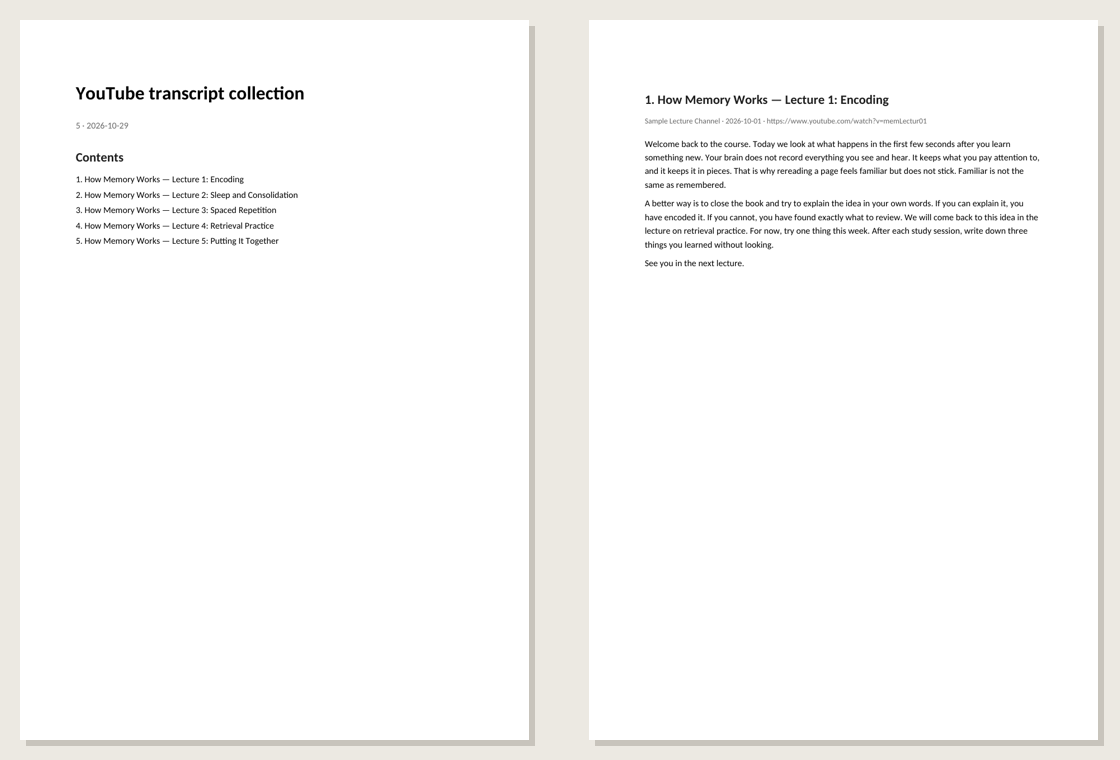
When the job finishes, choose a format. The Word booklet starts with a table of contents; then each video begins on a new page with its title, channel, date and link, in the same order as the playlist.
Long playlists
To be gentle on YouTube and avoid being asked to prove you are not a robot, TranscriptBinder collects up to 50 videos per day. For a 120-video course:
- Day 1: start the playlist. It stops at 50 videos and you can already download those.
- Day 2 and 3: under Past jobs, press Get new videos. Videos you already have are skipped, and the booklet includes everything collected so far.
The same button is useful later, too: when the creator adds new episodes to the playlist, it collects only the new ones.
Common questions
Some videos failed. Why? Usually the video has no captions, is private or deleted, requires sign-in (age-restricted), or is blocked in your region. The result list shows the reason for each one. See why some videos have no transcript.
Can I get timestamps? Yes. On the finished screen, set Timestamps to On before downloading. Each line then starts with a time such as [03:15].
Is my data uploaded anywhere? No. Transcripts and job history are kept in your own browser. See the privacy policy.