Turn a whole YouTube channel into one Word document
Sometimes you want to read a favorite lecture or interview channel like a book. Instead of opening each video and copying its captions, you can bind the whole channel's transcripts into one Word document with a table of contents, starting from a single channel link. This guide walks through it and shows how to keep the booklet up to date.
1. Copy the channel link
On YouTube, click the channel name to open the channel page. Copy the address from the address bar, for example https://www.youtube.com/@ChannelName. You can also type just @ChannelName in the dashboard. If you only want one series, open that playlist instead and copy the playlist address — see collecting a playlist.
2. Paste it into the dashboard and start
Paste the link into the dashboard. It immediately shows what it recognized, such as "1 channel(s)". Choose the transcript language (Auto keeps each video's original language) and press Start.
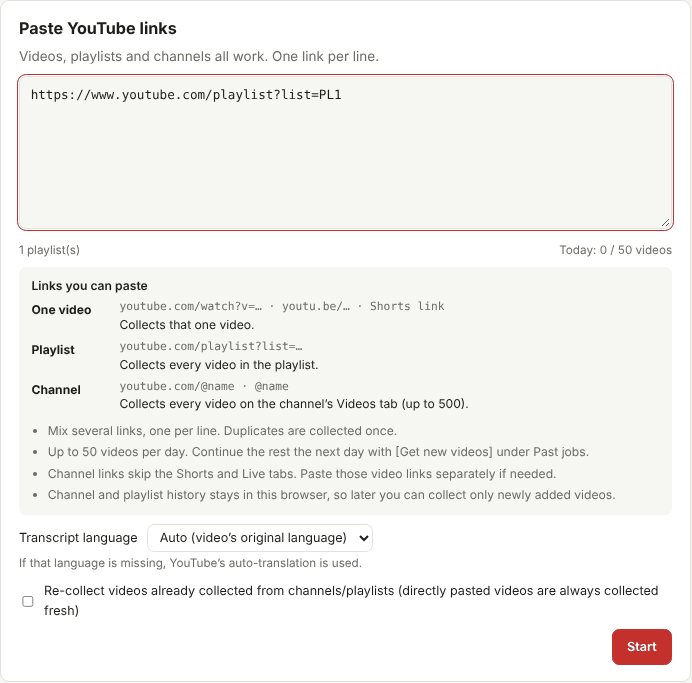
The extension first reads the list of videos on the channel's Videos tab (up to 500 of the most recent), then reads each video's transcript in a small window in the corner of your screen. Shorts and live streams are skipped; paste their links separately if you need them.
3. Plan for the size of the channel
Each video usually takes 10–30 seconds, so 50 videos take roughly 15–25 minutes. You can keep working in other tabs meanwhile; just do not minimize or close the small collector window, because YouTube only provides captions to a visible window.
TranscriptBinder collects up to 50 videos a day. A channel with 200 videos therefore takes four days: run the job once, and on each following day press Get new videos under Past jobs. Already collected videos are skipped, so nothing is collected twice.
4. Download the Word booklet
When it finishes, press Word booklet. The first page is a table of contents, and each video starts on a new page with its title, channel, publish date and link. With timestamps turned off, the captions are joined into easy-to-read paragraphs.
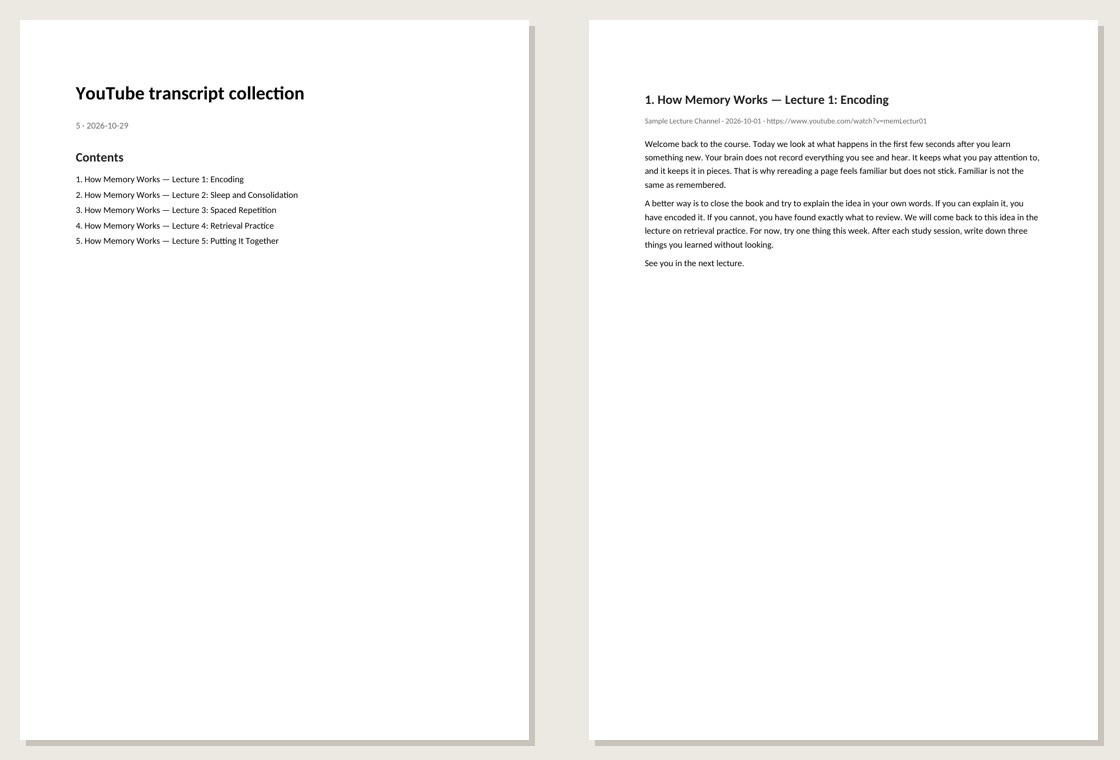
The file opens in Microsoft Word, Google Docs, LibreOffice and Pages. From there you can add your own notes, highlight passages, or export a PDF.
5. Next month, collect only the new videos
Channels keep growing. Under Past jobs at the bottom of the dashboard, press Get new videos. Only videos uploaded since your last run are collected, and the booklet you download includes the earlier videos too. Your job history stays in your own browser, so use the same browser each time.
Ideas for using a channel booklet
- Study a course offline — print it or read it on a tablet. See saving as PDF.
- Find every mention of a topic — use Word's search across the whole channel.
- Summarize with AI — see analyzing a booklet with AI.
Good to know
- Videos without captions cannot be collected. See why some videos have no transcript.
- Use the transcripts for personal study and research only. Copyright belongs to the video creators.