Save YouTube transcripts as a printable PDF
Some people think better with paper: a printed transcript can be underlined, annotated and read away from the screen. A PDF is also the easiest format to read on a tablet or e-reader. This guide shows how to make a tidy PDF from one video or a whole series, and how to set up printing so it looks good.
Option A: Save as PDF directly
- Collect the videos in the dashboard (paste the links and press Start).
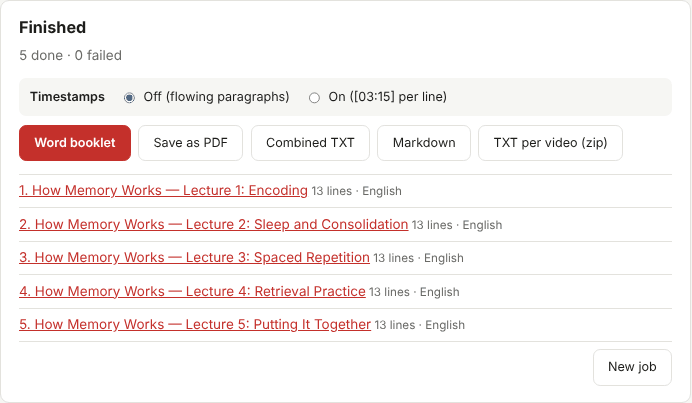
- On the finished screen, choose whether you want Timestamps on or off.
- Press Save as PDF. A print-ready page opens in a new tab and your browser's print dialog appears.
- In the print dialog, set Destination to Save as PDF and press Save.
If nothing opens, your browser may have blocked the pop-up. Allow pop-ups for binder.hogisimlab.com and press the button again.
Option B: Go through Word
If you want to edit before printing — delete the intro of every episode, add your own headings, change the font — download the Word booklet first. Open it in Microsoft Word, Google Docs, or LibreOffice, make your changes, then use File → Save as / Download → PDF. The table of contents and page breaks carry over.
Print settings that work well
| Setting | Suggestion | Why |
|---|---|---|
| Paper size | A4 | The PDF page is laid out for A4; on Letter paper choose "Fit to page" |
| Margins | Default | Leaves room for notes |
| Headers and footers | Off | Removes the browser's date and address lines |
| Two-sided | On, if your printer supports it | Halves the paper for long courses |
| Timestamps | Off for reading, On for reviewing a video | Paragraphs read faster; times help you jump back to a scene |
How many pages to expect
People speak at roughly 130–160 words a minute, so a transcript is longer than you might think. With timestamps off, a 10-minute talk is about 1,500 words and 3 pages; a one-hour lecture is 15–20 pages; a 20-video course is often 150 pages or more. Turning timestamps on roughly doubles the page count, because every caption line stands alone. Preview the first pages in the print dialog before you print a whole course.
Reading on a tablet or e-reader
A PDF keeps the same pages on every device. Send it to your tablet with your usual cloud drive and open it in a PDF app that supports highlighting. Because each video starts on a new page, the table of contents works as a quick index of the series. On a small e-reader screen, PDFs can be hard to read; if your device accepts documents, send the Word booklet instead, which reflows to the screen size, or convert it with a tool like Calibre.
Printing only some of the videos
The print dialog lets you choose page ranges. Open the PDF, note the page where the video you want starts (the contents page lists the order), and print just those pages. For a course, printing one lecture before each class keeps the pile manageable.
Tips for a better PDF
- Split very large collections. A 300-video channel makes a very long PDF. Collect it in a few jobs (for example by playlist or by year) so each file stays easy to handle.
- Check the language. If a video was transcribed in an unexpected language, run it again with a fixed language in the dashboard.
- Keep the links. Each video section includes its YouTube link, so you can always go back and check the original.
Respect the creators
A transcript PDF is for your own study. Please do not share it publicly, sell it, or present someone else's words as your own. When you quote a talk in your work, cite the video.