Keep a channel archive up to date every month
Some channels are worth keeping as a reference: a lecturer whose explanations you return to, a news analyst, an industry podcast. Collecting the channel once gives you the back catalogue. The question is how to keep the archive current without redoing the work. TranscriptBinder remembers which videos you already have, so a monthly top-up takes a few minutes.
Month 1: collect the back catalogue
- Paste the channel link (for example
youtube.com/@ChannelName) into the dashboard. - Choose the language and press Start. The extension reads the channel's Videos tab (up to 500 of the most recent) and collects each video in a small window.
- The daily limit is 50 videos. If the channel has more, the job stops at the limit with "Daily limit reached"; on the following days, press Get new videos under Past jobs to continue. Already collected videos are skipped.
- When everything is in, download the Word booklet (and perhaps Markdown for your notes app).
Every month after that
- Open the dashboard in the same browser — job history is stored only there.
- Under Past jobs, find the channel and press Get new videos.
- Only videos published since your last run are collected. When it finishes, the message tells you how many new videos were added and the new total.
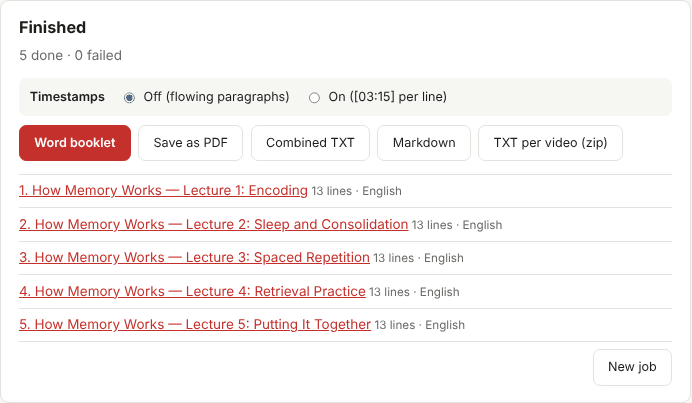
- Download the booklet again. It contains the old videos plus the new ones, in channel order.
A channel that posts twice a week adds about eight videos a month, so the monthly top-up takes under five minutes of collecting time.
Set a reminder
Put a recurring event in your calendar — "Update channel archive, first Saturday" — with the dashboard link in the notes. The job itself needs no attention while it runs; just keep the small collector window open on screen.
Storing the booklets
- One file per channel, overwritten monthly. Name it with the date, e.g.
ChannelName_2026-11.docx, and keep the previous month until you have checked the new one. - Or a notes app. Export TXT per video (zip) and add only the new files to your Notion or Obsidian folder; see putting transcripts into Notion or Obsidian.
- Back up your browser profile if the history matters to you: clearing site data in the browser removes the job history and the stored transcripts (your downloaded files are unaffected).
What the archive does not include
Channel links read the Videos tab only. Shorts, live streams and members-only videos are not collected; paste the links of individual Shorts or streams separately if you want them. Videos that were deleted or made private since your last run simply stay in your archive as they were.
If a video fails
Occasionally a video fails with "No transcript available" or a temporary error. Failed videos are not marked as collected, so the next Get new videos tries them again. See why some videos have no transcript.
Keep it personal
A channel archive is for your own reference. Do not upload it to shared drives or publish it; the transcripts belong to the channel. See copyright basics.